
Integration Guide5 min read
QuickBooks Online Integration Guide
Our QuickBooks integration keeps your accounting data in sync so invoices can be coded with your GL codes and posted seamlessly.
Hinges AI Team
What we sync from QuickBooks
We securely sync the core accounting data your team already uses:
- •Accounts – Your chart of accounts structure
- •Items – Product and service items
- •GL Codes – General ledger coding structure
- •Customers – Your customer list
- •Vendors – Your vendor list
Additionally, we also sync:
- •Purchase Orders (POs) – For enhanced tracking
Why we sync this data
We sync QuickBooks data for two key steps in our workflow:
1Coding
Automatically suggest the GL codes based on your existing QuickBooks setup
2Posting
Once approved, invoices are posted back to QuickBooks, using the same accounts, items, vendors, etc
How to connect Hinges to QuickBooks
Follow these steps to connect your account:
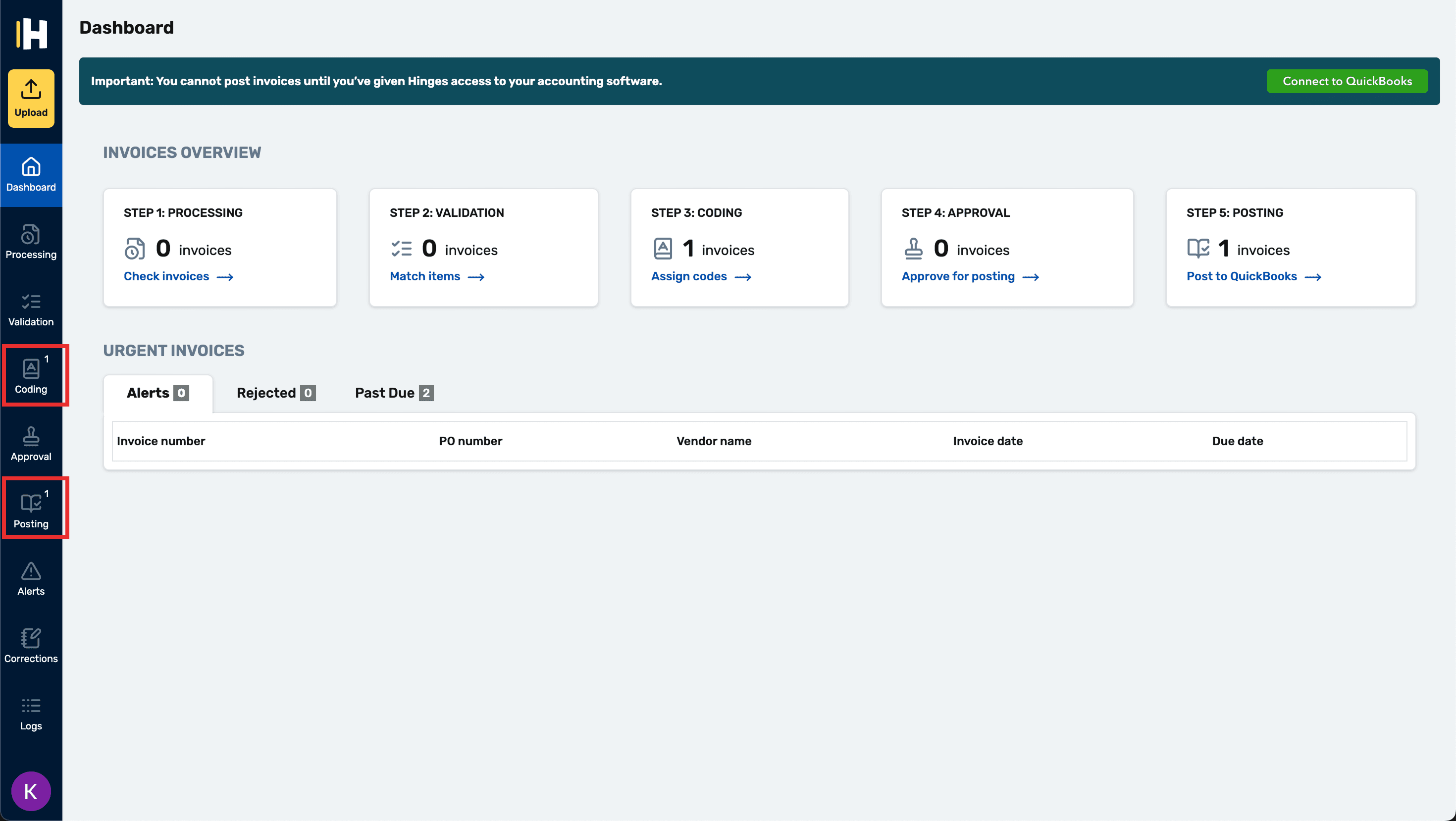
1Go to the Coding or Posting page
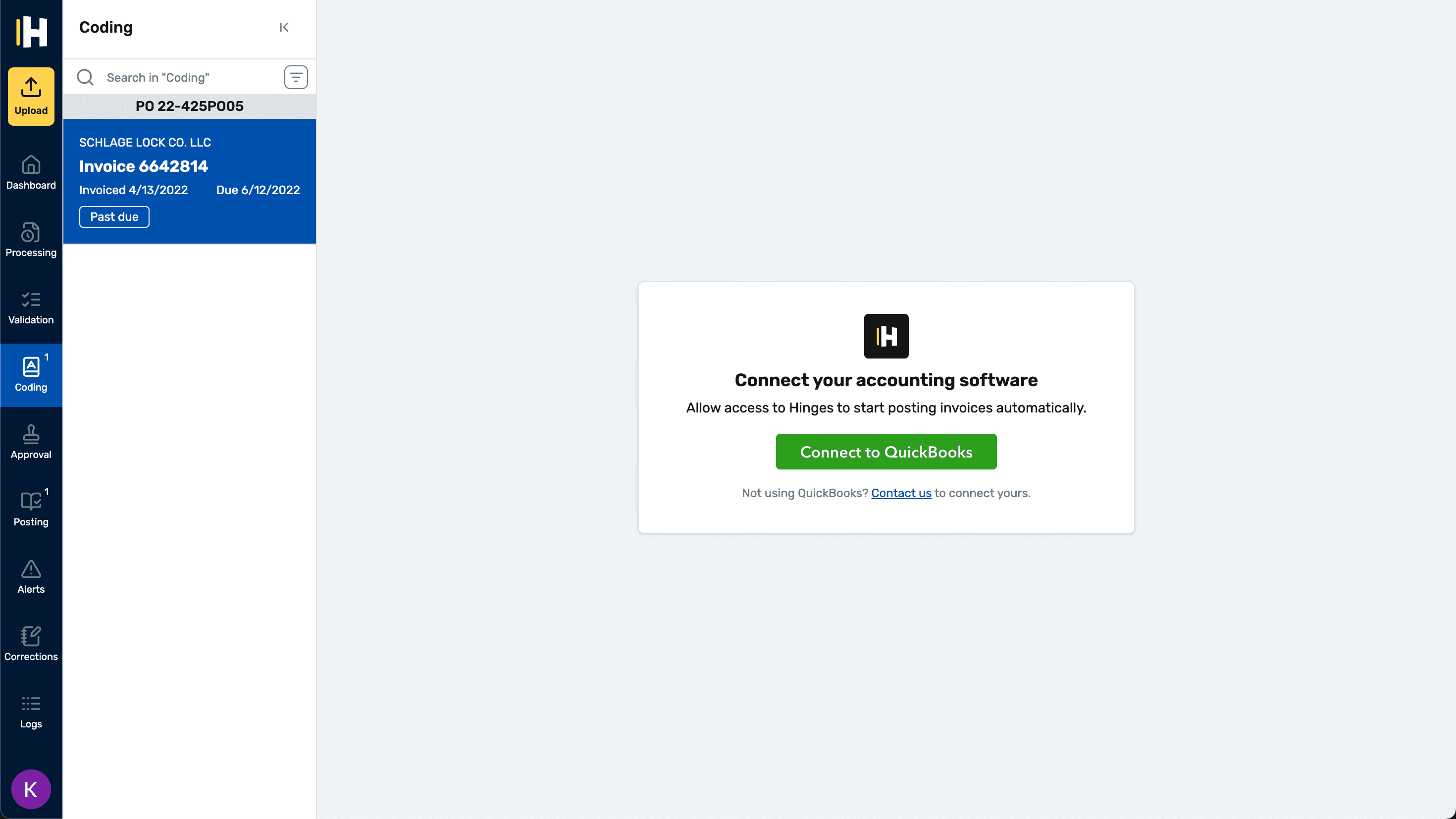
2Link your QuickBooks account and Hinges
Click the Connect to QuickBooks button on your Coding or Posting page.
3Login your QuickBooks account
Login your QuickBooks account to give Hinges access.
How to sync QuickBooks data to Hinges
Once you're connected, you can follow these steps to sync data to Hinges in case you have updated or new QuickBooks information:
- 1On the Coding or Posting page, click the QuickBooks options dropdown button
- 2Click Sync now